-
Type:
Bug
-
Resolution: Unresolved
-
Priority:
 Low
Low
-
None
-
Affects Version/s: 7.13.11, 8.5.1
-
Component/s: Development Panel
-
7.13
-
4
-
Severity 3 - Minor
-
0
Issue Summary
Source tab appear on the issue details if JIRA lost connection to Bitbucket Server
Steps to Reproduce 1
- Connect JIRA with Bitbucket Server using application link.
- Shutdown Bitbucket Server.
- Go to Application link page, make sure the application link page show Bitbucket as network error.
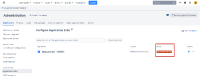
- Go to any issues in Software project > Click on other tab such as Worklog or History.

Steps to Reproduce 2
- Connect JIRA with non existent Bitbucket Server using application link.
- Put any URL on the Create new link field.

- Click Create new link > Click Continue.
- Fill up the application name and Application type to Bitbucket Server > Click Continue.
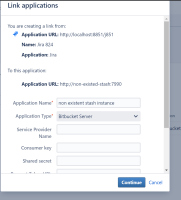
- The non existent Bitbucket Server link will return status unavailable.
- Go to Issue details > Source tab will appear.


Expected Results
Source tab does not appear.
Actual Results
Source tab appear in issue detail with authentication error to the Bitbucket Server.

Workaround
No known workaround at the moment.
- links to


- mentioned in
-
Page Loading...