-
Type:
Bug
-
Resolution: Fixed
-
Priority:
 High
High
-
Affects Version/s: 4.16.0, 4.20.25
-
Component/s: Assets - Core experiences
-
7
-
Severity 3 - Minor
-
1
Issue Summary
When using basic search to filter the attribute values, some values are not listed if
- there are at least 2 object types referencing the same object and this object type/attribute is created/updated later than another one
- very few objects are assigned with the value(s) (< 1%)
Steps to Reproduce
 In order to reproduce this, we need a big amount of data. An easy way to reproduce this is by using the NVD data.
- Set up NVD integration as per this documentation and sync from the CVE-2020 database.
- The Product object type will have 7000+ objects created.
- Create another object type (e.g. Variants), create 3 objects (e.g. u1, u2, u3).
- Add an attribute to the Product object type referencing Variants.
- Assign 5 objects of Product with u3 and 30 objects with u1. Assign all other objects with u2.
- In the object schema search page for Product, use basic search and select to filter by Variants. We'll see all 3 values of Variants appear in the list.
- Now we need a second object type referencing Variants too. To make this simple, we can create another object type (e.g. Application) and import another 7000+ objects again from the CVE database (or CSV import).
- Add an attribute to the Application object type referencing Variants.
- Assign 5 objects of Application with u3 and 30 objects with u1. Assign all other objects with u2.
- In the object schema search page for Application, use basic search and select to filter by Variants.
- Note that only option U2 with lot of occurrences will show up:
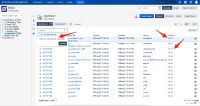

 It was also noticed the same problem occurs when an attribute is referring to Jira Groups (with non-standard groups) and it is used in the Basic Filter. When the Object Type has a huge amount of assets, the Basic Filter does not list all possible Groups.
Expected Results
As long as there's at least one object with the attribute value, the value should show up in the basic search list of both object types (Product and Application)
Actual Results
- In the search for Product, all 3 options (u1, u2, and u3) are shown in the list
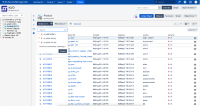
- In the search for Application, only the option(s) with the majority of occurrences are shown. With the steps above, only U2 is shown.
- If you type U1 or U2, the option will become available

Workaround
- Use the advanced search; or
- Type in the value in the basic search field (it may fail in some cases as well)


