-
Type:
Bug
-
Resolution: Duplicate
-
Priority:
 Low
Low
-
None
-
Affects Version/s: 9.5.0, 9.5.1, 9.6.0, 9.8.1, 9.9.0
-
Component/s: Issue - View Issue
-
None
-
9.05
-
8
-
Severity 3 - Minor
-
7
Issue Summary
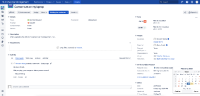
Editing date field using calendar picker in View Issue screen doesn't work in Jira Service Management (JSM) projects.
Steps to Reproduce
- Create a new Service Management (Service Desk) project
- Add the Due Date system field to the View/Edit issue screen of the project
- Navigate to an issue
- Edit the issue, input a Due Date, save
- In the View Issue screen, hover over the Due Date field and click the pencil icon.
- Click the calendar icon on the right hand side and a calendar will pop up
- Select a new date and click 'Confirm'
Expected Results
- The new date is saved
Actual Results
- The date does not change

Workarounds
Workaround 1
- Instead of editing in the View Issue screen, click the Edit button and edit the Due Date in the Edit Screen. It works fine there
Workaround 2
- Click on the Date picker field
- Manually update the date
- Click on the check mark icon
Example: JRASERVER-74890-workaround2.mov
Notes
- This bug only impacts JSM projects, and does not occur in Business nor Software projects
- This works fine in Jira 9.4.0 but there isn't any 'Confirm' button for the calendar in this version

- This affects custom fields of date type as well


- duplicates
-
-

- Closed
-