-
Type:
Bug
-
Resolution: Fixed
-
Priority:
 Low
Low
-
Affects Version/s: 8.4.2, 8.5.4, 8.5.9
-
Component/s: Core - Macros Platform
-
1
-
Severity 3 - Minor
Issue Summary
If a custom user macro with a body is inserted between two texts on a page, it will be rendered as BLOCK, whereas in an earlier version, it was rendered as INLINE. Please review the attachment for details.
This is reproducible on the Data Center: Yes.
Steps to Reproduce
- Create a user macro using the following definition and set Macro Body Processing as Rendered
## @param Colour:title=colour|type=string
## @param Size:title=size|type=string
<span style="color: $paramColour; font-size: $paramSize">$body</span>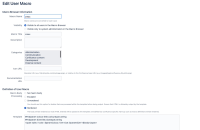
- Create a page and enter text and user macro in the same line as shown below:
before<user macro>after

Expected Results
In the preview or published page view, the text and user macro should show in the same line(INLINE) as shown below and in the attachment 
before <user macro body> after
The storage format looks like the following:
<p>Before user macro</p>
<ac:structured-macro ac:macro-id="d990e9a9-77dc-4270-aab8-0945051e5742" ac:name="cmac" ac:schema-version="1">
  <ac:parameter ac:name="Size">120</ac:parameter>
  <ac:parameter ac:name="Colour">Red</ac:parameter>
  <ac:parameter ac:name="atlassian-macro-output-type">INLINE</ac:parameter>
  <ac:rich-text-body>
    <p>Insider User macro</p>
  </ac:rich-text-body>
</ac:structured-macro>
<p>outside macro</p>
Actual Results
In the preview or published page view, the text and user macro are shown in different lines, as shown below and in the screenshot 
before
<user macro body>
after
Storage format looks like this, and it does not have <ac:parameter ac:name="atlassian-macro-output-type">INLINE</ac:parameter> line as seen in the working storage format.
<p>
  <span style="color: rgb(23,43,77);">Before user macro</span>
</p>
<ac:structured-macro ac:macro-id="a14d5d61-5293-4306-81a8-ab88989a6ff3" ac:name="cmac" ac:schema-version="1">
  <ac:parameter ac:name="Size">12</ac:parameter>
  <ac:parameter ac:name="Colour">Red</ac:parameter>
  <ac:rich-text-body>
    <p>inside user macro</p>
  </ac:rich-text-body>
</ac:structured-macro>
<p>after user macro</p>
We found this has stopped working from Confluence version 8.4.2.
Workaround
Workaround 1
- Edit the storage format of the page and add <ac:parameter ac:name="atlassian-macro-output-type">INLINE</ac:parameter> after structured-macro line for the user macro.
- For example from
<p>
  <span style="color: rgb(23,43,77);">Before user macro</span>
</p>
<ac:structured-macro ac:macro-id="a14d5d61-5293-4306-81a8-ab88989a6ff3" ac:name="cmac" ac:schema-version="1">
  <ac:parameter ac:name="Size">12</ac:parameter>
  <ac:parameter ac:name="Colour">Red</ac:parameter>
  <ac:rich-text-body>
    <p>inside user macro</p>
  </ac:rich-text-body>
</ac:structured-macro>
<p>after user macro</p>
- To
<p>
  <span style="color: rgb(23,43,77);">Before user macro</span>
</p>
<ac:structured-macro ac:macro-id="a14d5d61-5293-4306-81a8-ab88989a6ff3" ac:name="cmac" ac:schema-version="1">
  <ac:parameter ac:name="Size">12</ac:parameter>
  <ac:parameter ac:name="Colour">Red</ac:parameter>
  <ac:parameter ac:name="atlassian-macro-output-type">INLINE</ac:parameter>
  <ac:rich-text-body>
    <p>inside user macro</p>
  </ac:rich-text-body>
</ac:structured-macro>
<p>after user macro</p>
- Save the page, showing output as given in the Expected result section screenshot.
Workaround 2
- Edit the user macro definition Global Setting -> User Macros -> Edit the user macro.
- Add a new param to add the macro output type explicitly given below and as highlighted in the screenshot:
## @param atlassian-macro-output-type:type=enum|enumValues=BLOCK,INLINE|default=INLINE
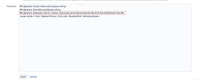
- Go to a Confluence page to update existing instances of the updated macro or add a new instance. When selecting the user macro, you will notice that it only shows the Edit and Remove buttons; it does not show the Macro output buttons, which help you toggle between BLOCK and INLINE.

- Click on Edit, set atlassian-macro-output-type to BLOCK, and click Save.
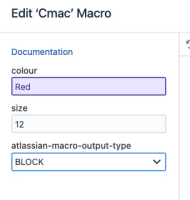
- Select the macro again, and you will see a toggle button to switch between the INLINE and BLOCK views. Use the toggle button to switch to INLINE and save the page.
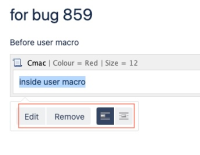
- You will notice that the published and preview page views start showing text and the user macro body in one line( INLINE), as given in the Expected Results section.


